Keyboard
For keyboard fans: layouts and form factors
QWERTY, Colemak, 60% or split. What layout and form factor change about typing, what they deliver and what is just marketing.
Automatically translated from German. Read the original
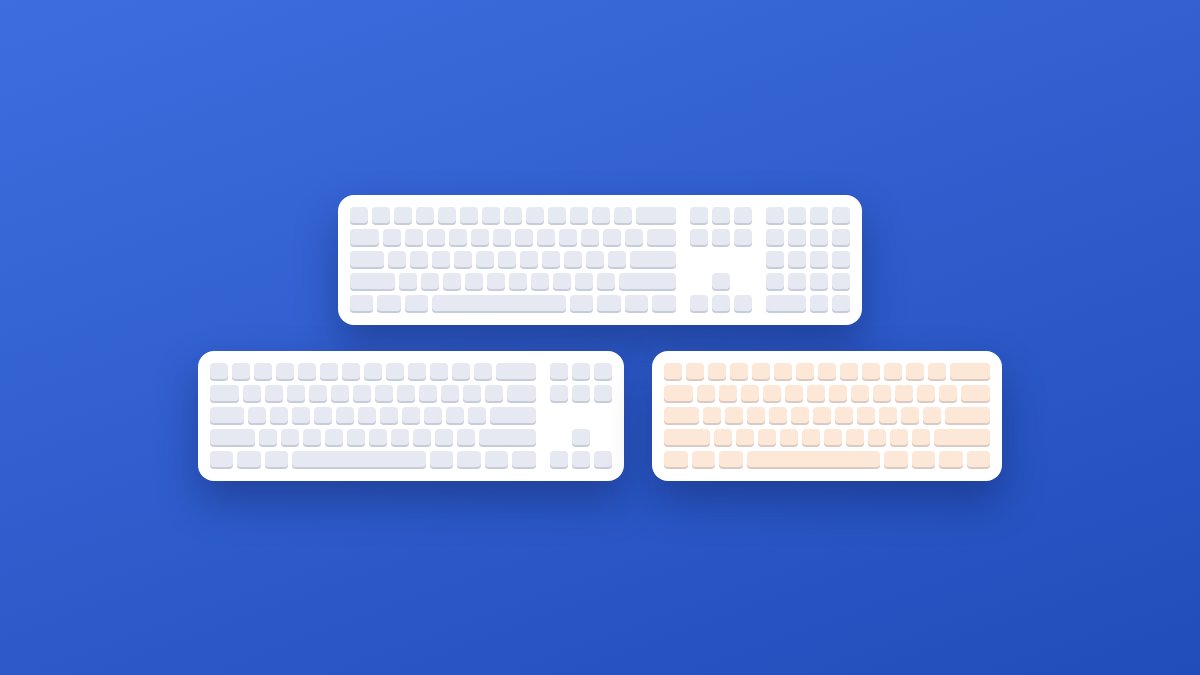
Once you start looking into keyboards, a whole world opens up: alternative layouts, smaller cases, split boards, mechanical switches in every colour of the rainbow. Two separate things get mixed up a lot here. The layout decides which character sits on which key. The form factor decides which keys exist at all and where they are.
Layouts: which character goes where
Most people type on the layout of their country:
- QWERTY in the US and the UK, and in many other countries with their own special characters
- QWERTZ in Germany, Austria and Switzerland
- AZERTY in France and Belgium
These layouts date back to the typewriter. Nobody designed them to keep finger movement short. There are alternatives built for exactly that:
- Dvorak (1936): all vowels sit on the left side of the home row, the most common consonants on the right.
- Colemak (2006): keeps many keys where QWERTY has them, including Z, X, C and V for copy and paste, and moves the most frequent letters onto the home row.
- Colemak-DH: a Colemak variant that moves D and H down a row, because the middle of the home row is awkward for the index fingers.
What a different layout gets you
On QWERTY, common analyses of English text put only about a third of keystrokes on the home row. On Dvorak and Colemak it is around two thirds. Your fingers travel less, and many people find that calmer and easier on their hands.
It does not make you faster by itself. The fastest typists in the world use every layout, QWERTY included. And switching costs time: if you already touch type, your speed drops close to zero and takes a few weeks to come back. Switching works best if you stop using the old layout completely for a while. Expect that stretch to be frustrating.
A switch is most worth it if you:
- are learning to touch type anyway and have no fixed habits yet,
- write a lot and want to go easier on your hands,
- enjoy experimenting.
Form factors: which keys you get
| Form factor | What goes | Keys (roughly) |
|---|---|---|
| Full size | nothing | 104 |
| TKL (tenkeyless) | number pad | 87 |
| 75% | number pad, everything pushed closer | 84 |
| 65% | number pad and F-row, arrow keys stay | 68 |
| 60% | number pad, F-row, arrow and navigation keys | 61 |
These counts are for the US ANSI layout. UK keyboards use the ISO layout, with a tall Enter key and one extra key next to the left Shift. If you order a keyboard from abroad, check which one you are getting.
Smaller keyboards save space and bring the mouse closer to your hand. What is missing moves to a second layer, usually behind an Fn key. When you are writing prose you will barely notice. With spreadsheets, long columns of numbers or code that needs a lot of arrow keys, you will.
Then there are special shapes:
- Split keyboards divide the board into two halves. Your shoulders stay more open and your wrists straighter.
- Ortholinear keyboards put the keys in straight columns instead of staggered rows. That matches how fingers move, but it takes getting used to.
Mechanical, low-profile or laptop
Mechanical switches have a noticeable actuation point, and many people like how that feels. An expensive keyboard usually does not make you faster or more accurate, though. What matters more is getting used to one keyboard until the movements stick. If you switch between a laptop and a desk keyboard, you will notice the difference at first and adapt quickly.
Setting up Keypacer
- Layout: Keypacer recognises your layout from the keys you type. You can also pick it from the menu. Supported: QWERTY (US, UK, Spain, Italy, Poland, Portugal, Sweden and Finland), ABNT2 (Brazil), QWERTZ (Germany, Switzerland), AZERTY (France, Belgium), Dvorak, Colemak and Colemak-DH.
- Keyboard profiles: You can set up to eight keyboards, for example laptop, desk and office. Keypacer keeps a separate profile for each, so you can see which one you are fastest on.
- Form factor: It does not matter to the trainer. You practise letters, punctuation and special characters that every keyboard has.
Want to learn a new layout? Start a new keyboard profile in Keypacer. Your progress on the old layout stays separate, and you can watch yourself catch up on the new one.